Adding a filtering rule
Filtering allows you to restrict the online content users have access to.
1. Go to the main menu and select Group, then Devices.
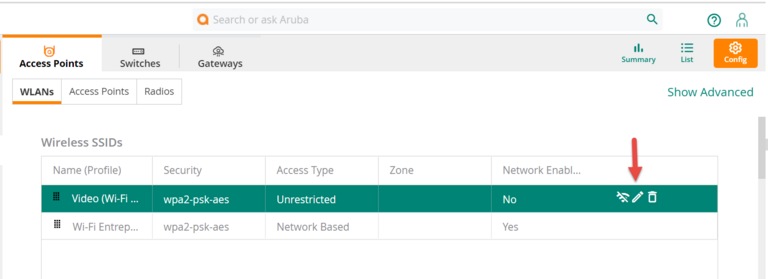
2. Select Config, then select the Wi-Fi network, then click on the pencil icon to activate editing mode.
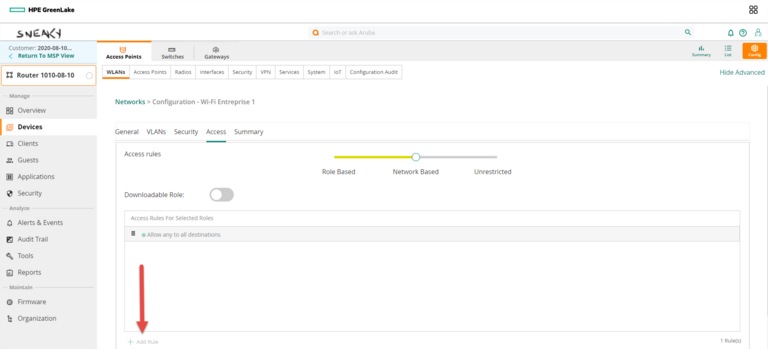
3. Select Acces, then click on the + sign to add a new rule.
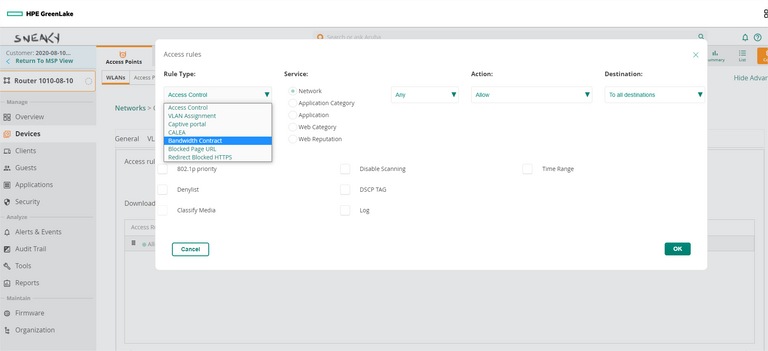
4. Select the rule Access Control from the dropdown menu.
5. Select content type in the Service field (Network, Application Category, Application, Web Category, or Web Reputation), as well as all the services for which you want to restrict access, then select Deny in the Action field.
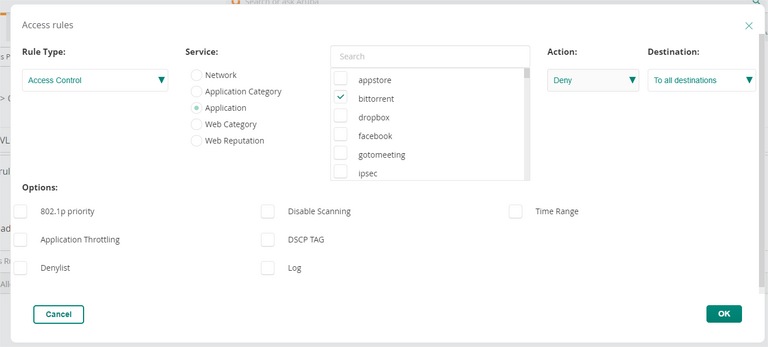
6. Click on OK, then on Save Settings.
Good to know
The rules will be prioritized and applied according to their order, from top to bottom. It is possible to reorganize the rules as needed.
Still need help?

Customer Service
For any questions about your account or invoice, or to modify or add services.
 1 877 512-8590
