Appropriately licensed Cloud Communications users each have access to a permanent conference bridge as well as uniquely generated bridges for each of their meetings. Participants can join by videoconference or telephone, depending on their preference.
For a given meeting, it is possible that everyone who attends joins by telephone.
Meeting with a single number: how to organize and participate
As soon as you set up a meeting using the Webex app, the app automatically generates a number specific to the meeting you're scheduling. This meeting number is displayed in the invitation email that attendees receive.
Depending on the configuration you have chosen, individuals participating in your meeting may require a password.
Participants must enter the meeting number in order to join the meeting through the conference bridge.
Using a permanent conference bridge
Participants in a meeting, including its organizer, have the option to use the phone or Webex app to join the meeting. When the organizer uses the Webex app to join a meeting, they can see a list of attendees who are already present at the meeting.
- Dial the phone number to reach Webex.
- Select your language (1 = English, 2 = French), then press the # key.
- Enter the meeting number, then press the # key.
- A) If you are the meeting organizer, enter your PIN and press the # key.
B) If you are participating in the meeting and have received a participant number, enter it and press the # key.
C) If you are a participant and you have not received a participant number, just press the # key.
The solution offered by Cloud Communications plans is secure by default. From their Webex app, the organizer must approve access to the meeting for each participant.
Videotron Business may ease this security constraint at the request of the account administrator. It is possible for the organizer, for example, to connect by phone and let the participants do the same. In such a case, however, participants who are not authorized would listen to the conference call.
For more information about meeting access, see the Webex Support site.

Find the personal room number and PIN
In order to use the permanent conference bridge mode offered by your Webex conferencing service, you need to know your personal room number and PIN.
Follow the steps outlined below to find this information.
- Launch the Webex app on the computer, and then launch the settings.
- Click Meetings.
- Scroll down to the My Personal Room section.
Write down your permanent personal room number and organizer PIN.
In the example above, we see that the room number is 2774 364 0915, and the organizer PIN is 8002.
How to change your organizer PIN
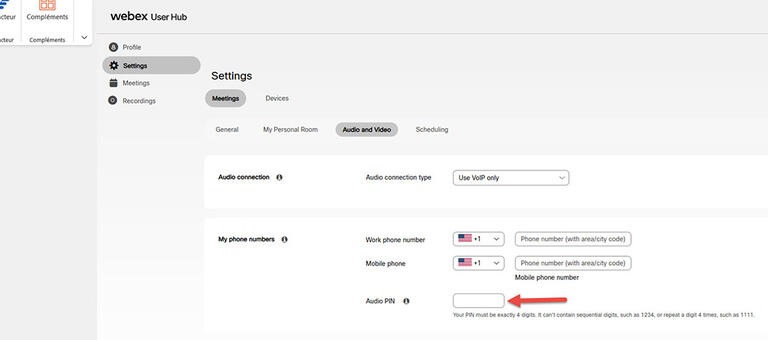
From the User Hub portal, it is possible to change your organizer PIN. Follow the steps outlined below.
- Go to Settings -> Meetings -> Audio & Video.
- Locate the My Phone Numbers section, where the organizer's PIN is located.
- Change the PIN to the one you want, then click Save.
Types of conferences available depending on the chosen license
| Plan | Conference call | Videoconference | Conference bridge |
| Fix |  |
- | - |
| Pro | |
- | - |
| Executive | |
24 hours, 100 participants | - |
| Call Center | |
24 hours, 100 participants | - |
| Conference | - | Unlimited. 1000 participants | |
| Total | |
Unlimited. 1000 participants | |
Not yet a Videotron Business customer?
Take advantage of reliable, flexible voice and business communications solutions that are ready to scale. Discover business telephony
Still need help?

Customer Service
For any questions about your account or invoice, or to modify or add services.
 1 877 512-8590
