Sharing recordings: a safe practice
If you are not an administrator and want to securely transfer recordings to one or more people, we recommend that you use the email sharing feature. See how to share a recording by email
How to download a single recording
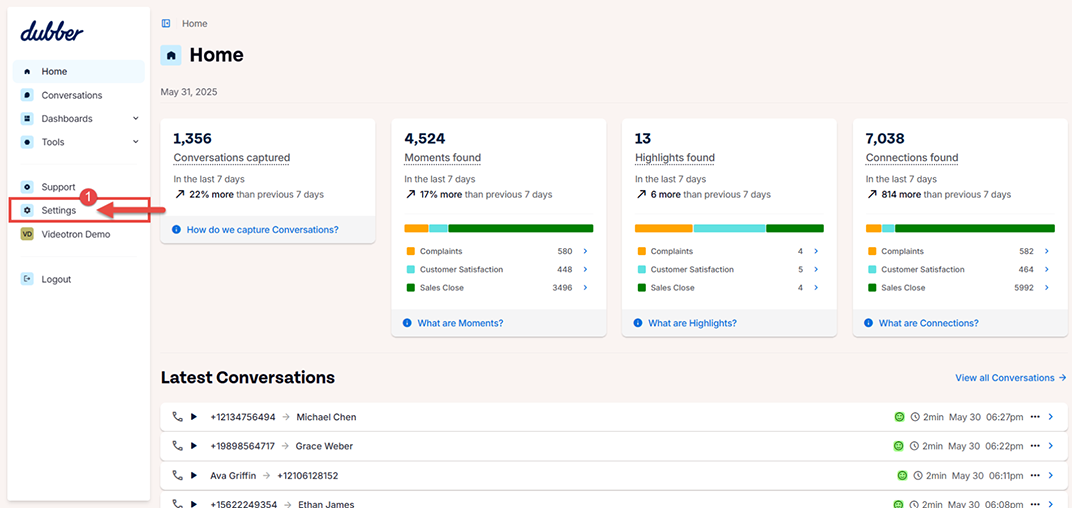
- Logging in to the portal as an administrator. If, upon opening the portal, you are directed to the AI interface, click on settings in the menu on the left.
- Access the list of recordings and find the recording to download.
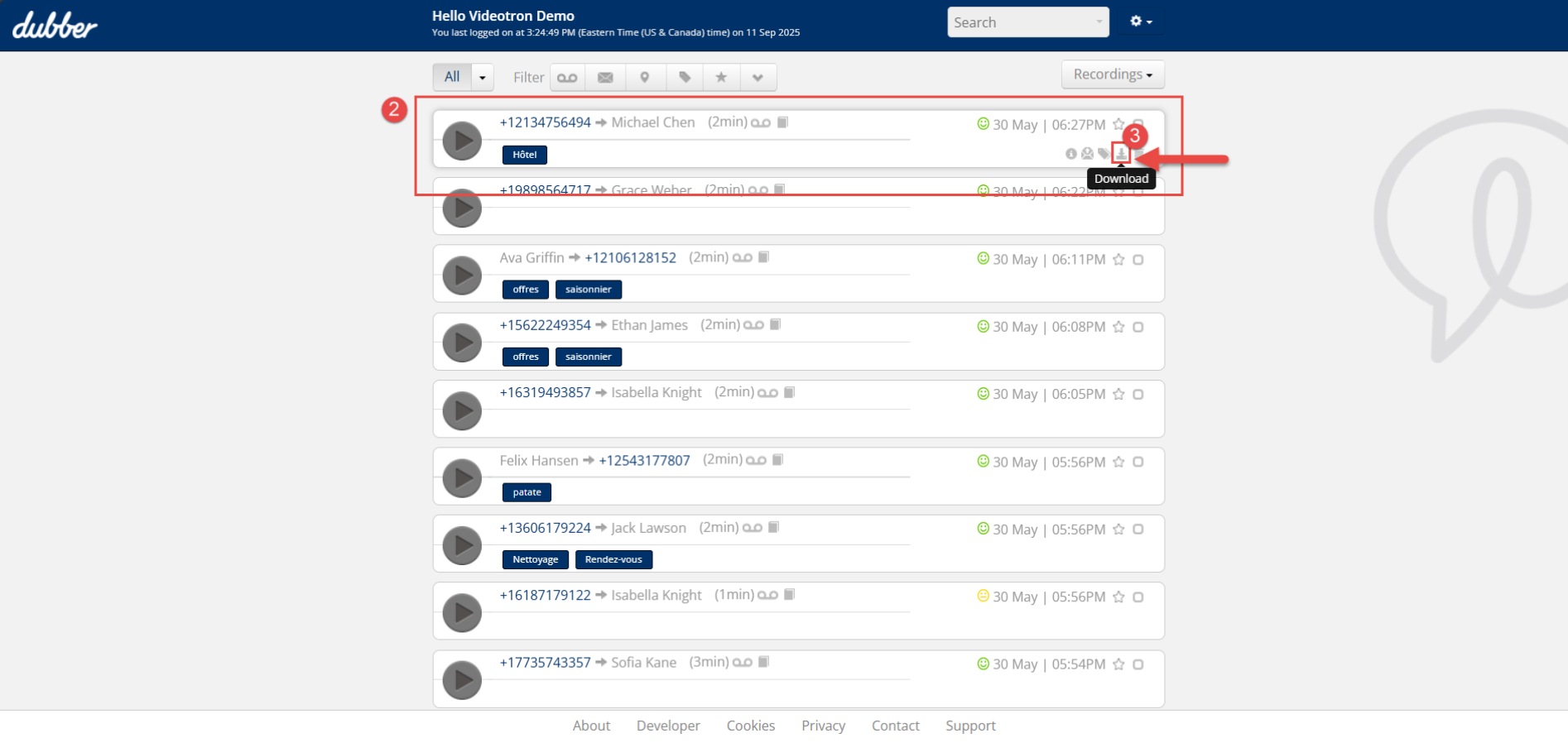
- Click on the download icon.
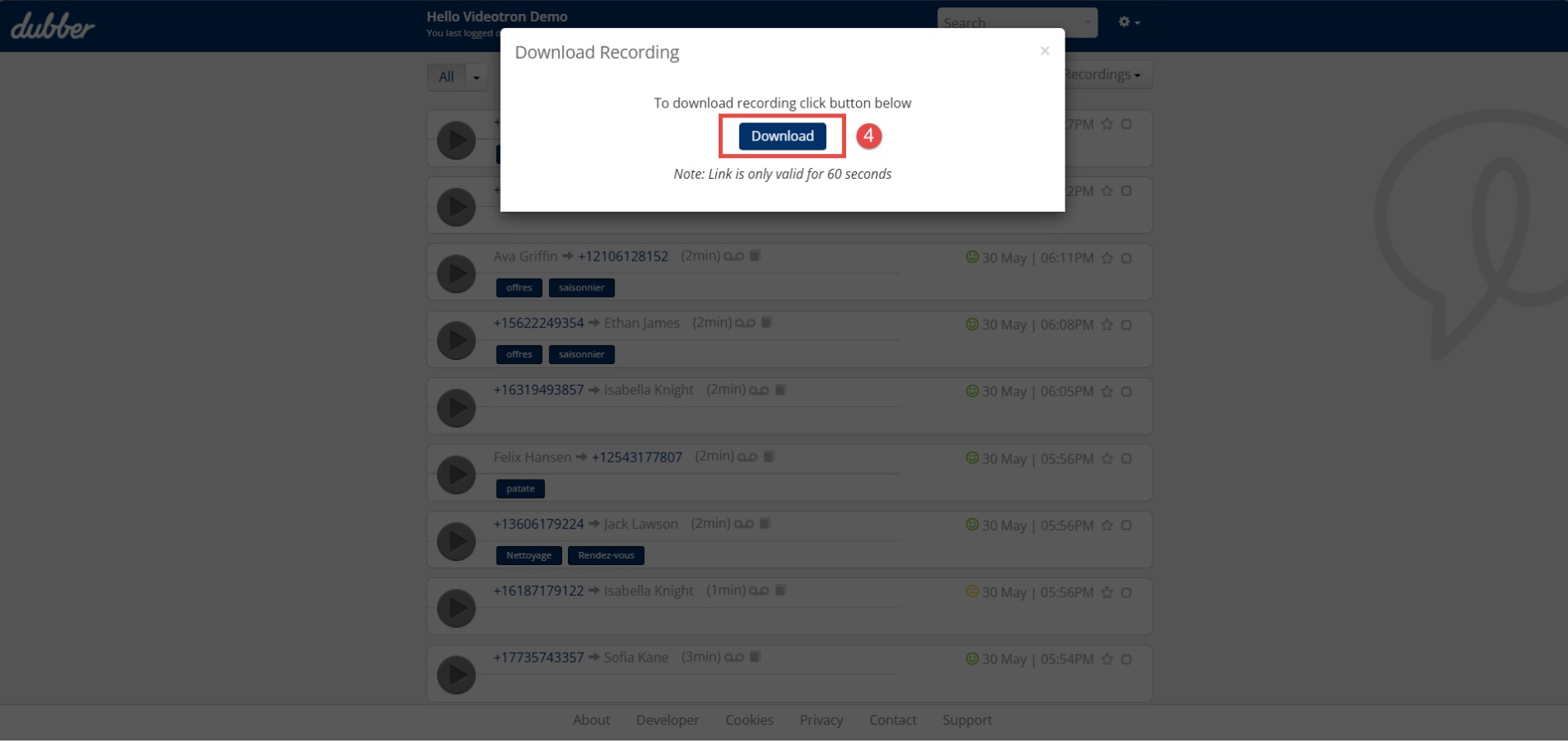
- Click on the Download button. You have 30 seconds to click the button. After 30 seconds, you will have to start again from step 3.
The downloaded file will be in MP3 format. The file name will match the sequence number of the recording.
If you want the file name to contain metadata (date, time, phone number), use the procedure to download multiple recordings instead.
How to download multiple recordings
This procedure works for a reasonable number of recordings. It requires a manual selection.
To download a very large number of recordings, use the Download using APIs.
- Log in to the portal as an administrator.
- Access the list of recordings by clicking on Settings in the menu on the left.
- Check the desired recordings.
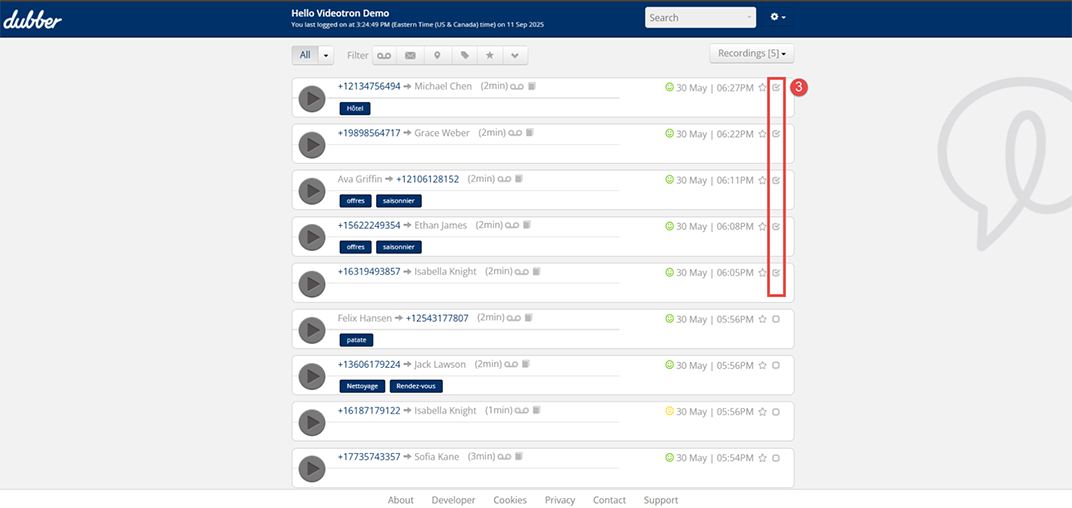
- Click on the Recordings menu and select Download.
A message displayed at the top of the page will confirm that the download is in progress.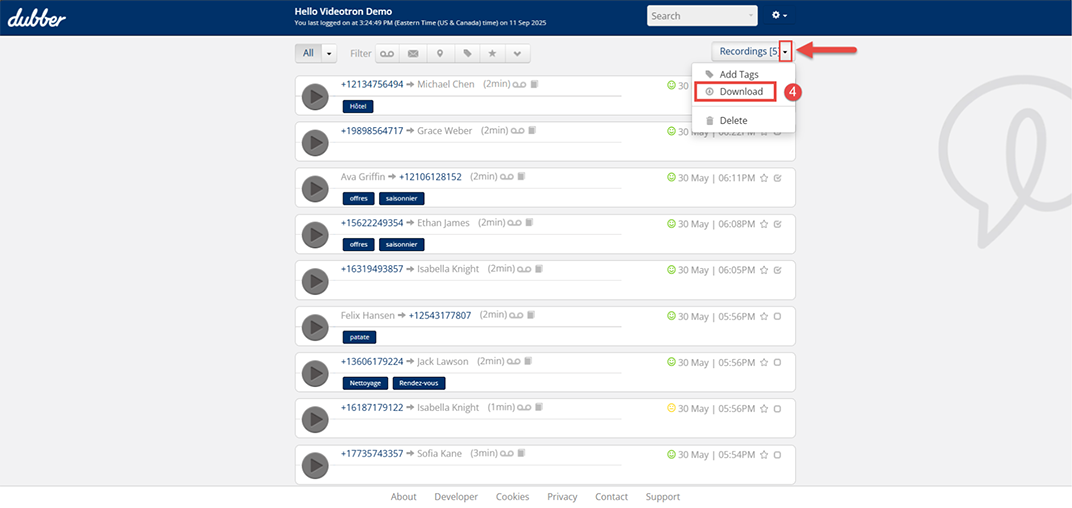
- Check your email. You will find a Bulk download notification message. The email will contain a link that will allow you to access the files.
- Click on the download icon. The files to be downloaded will be available in the portal for 48 hours.
- Click on the Download button.
The downloaded files will be contained in a compressed folder that will include each of the selected recordings with its own .mp3 file.
The file names will contain the recording’s metadata:
- Start date (UTC time zone)
- Start time (UTC time zone)
- Call Direction (O for Outgoing, I for Incoming)
- Caller’s number
- Number of the person called
- Recording sequence number
How to download using APIs
The call recording service is designed for unlimited time hosting. This means that there is no need to manually download a large volume of recordings to be retained. However, businesses that want to do so can use an API.
Useful documents
Refer to the user guide for the steps to follow. The sample Python programming script serves as a basis for modifying and compiling into an executable application. Instructions are included.
Keeping recordings of an employee who has left the company
At your request, Videotron can delete a user's account while retaining existing recordings. From this point on, there will be no new recordings in this account.
The account administrator is allowed to listen to recordings from closed accounts, share them, and download them. They will have access to closed accounts as long as you maintain your subscription to this option.
Not yet a Videotron Business customer?
Call recording is an advanced option available with Cloud Communications to meet all your telephony and business communications needs. Discover Cloud Communications
More need help

Customer Service
For any questions about your account or invoice, or to modify or add services.
 1 877 512-8590
