How to find a specific call recording
How to filter recordings
Go to the portal
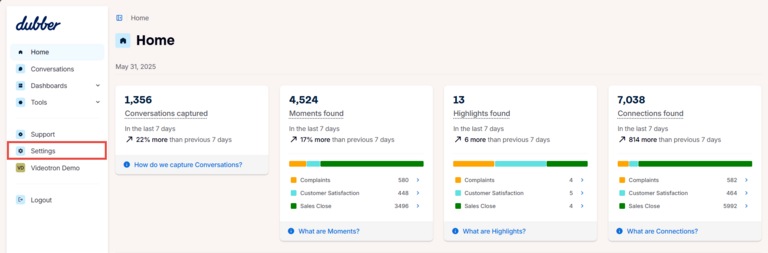
If, upon opening the portal, you are directed to the AI interface: Click on Settings in the side bar. The window in which you can select filters will open in a new tab.
Click on a filter to activate it.
There are 6 types of call filters:
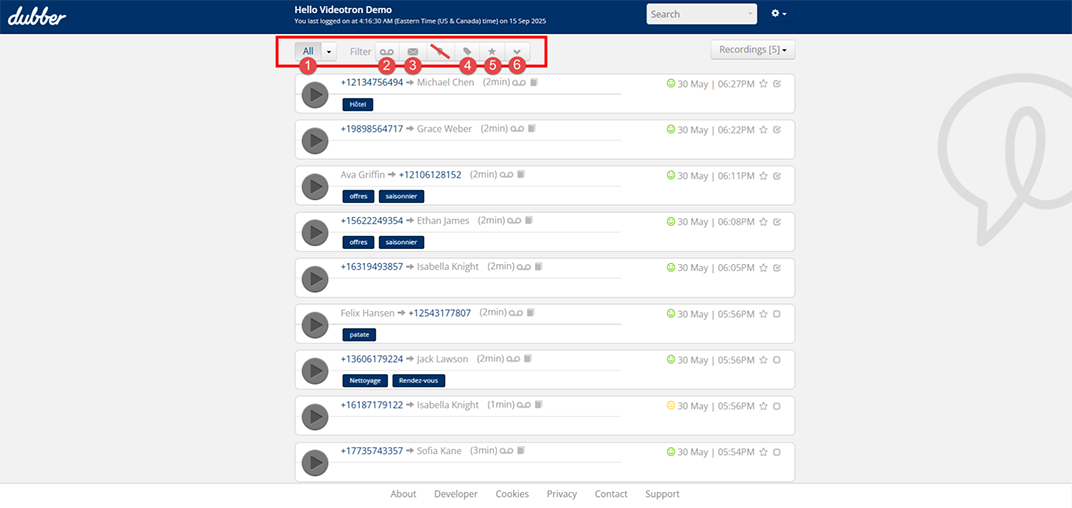
- By team
Allows you to access a specific team's recordings or your own recordings only. - By recording
Allows you to display only phone calls without voicemails. - By voicemail
Allows you to display voicemails without phone calls. - By custom tag
Allows you to display only recordings that are associated with at least one label. - By favorite
Allows you to access only recordings that are identified as favourites. - By dub.point.
Allows you to view only the recordings of a specific user.
How to search for a recording by keyword
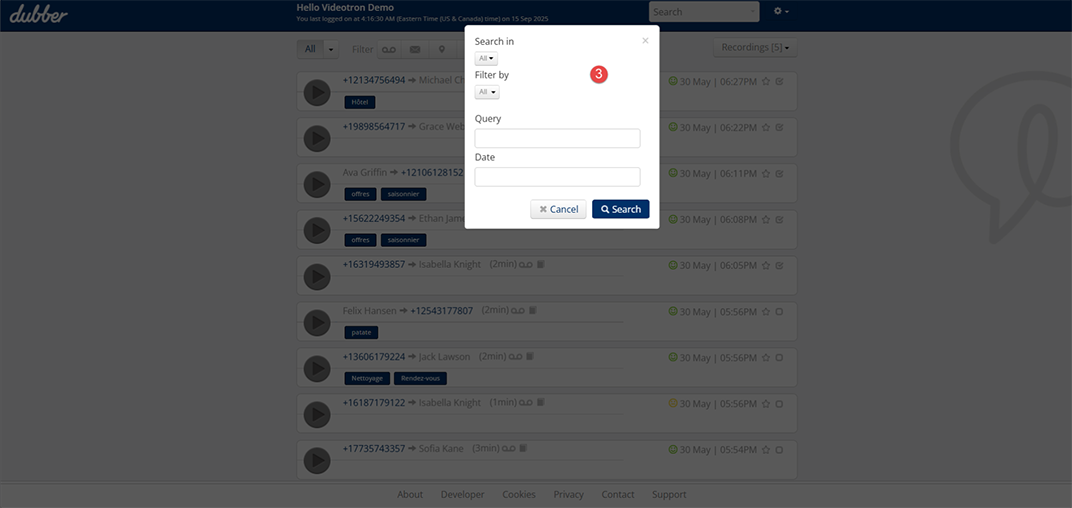
It is possible to search for a recording by keyword only or by matching the keyword with a filter, to obtain a precise result.
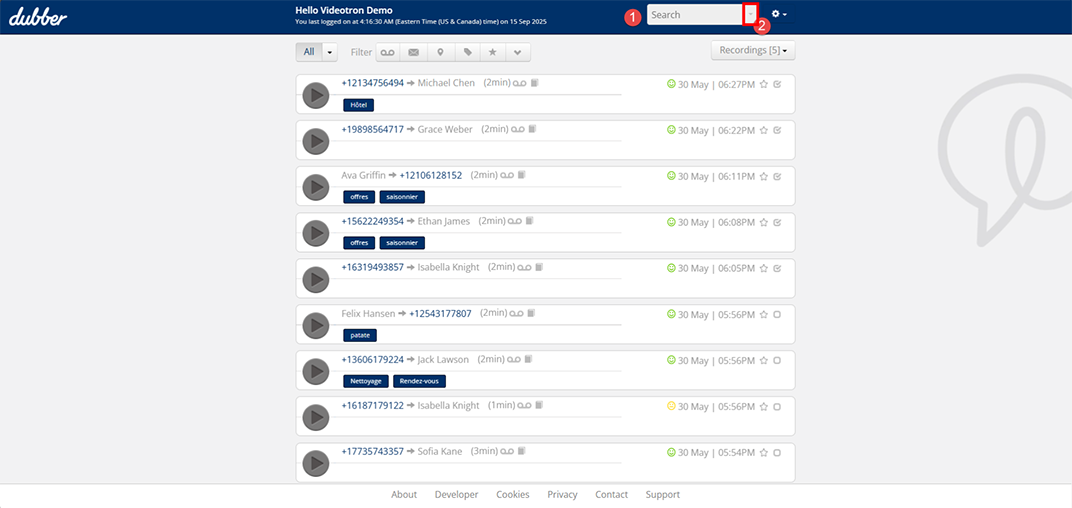
- Enter the search criteria in the appropriate field.
- Click on the small arrow to the right of the search field to view the filters, if necessary.
- Select the search criteria or fill in the desired fields.
How to use custom tags
The use of custom tags makes it easier to sort and find recordings.
Add one or more tags to a recording
- Find the recording you want to tag.
- Drag the slider to the right below the time and click on the label to create a custom tag.
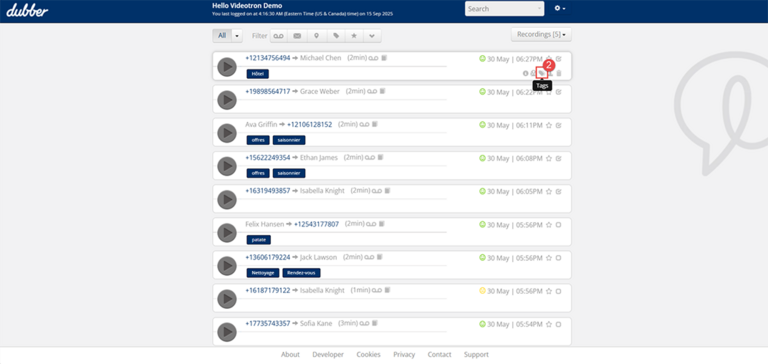
- Add or remove tags from this recording.
- Click Save.
Add one or more tags to multiple recordings at the same time
- Select the recordings you want to tag.
- From the Recording, drop-down menu, select Tags.

- Add the tag(s) of your choice and click Save.
How to play a recording
The media player allows users to play recordings and access the information associated with them.
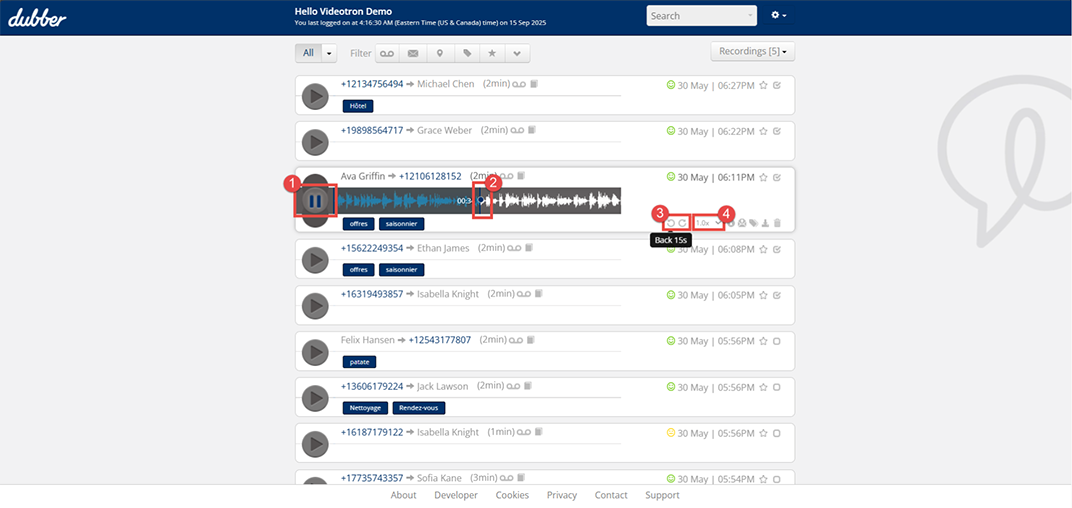
- Find the recording and press Play.
- Click on the scroll bar to quickly skip to another point in the call.
- Use the control buttons to move forward or backward 15 seconds.
- Change the scroll speed to speed up or slow down the playback speed.
How to delete a recording
Only administrators can delete recordings. This feature is not available to users.
Warning: The deletion of a recording is permanent.
To delete a recording, follow the steps below:
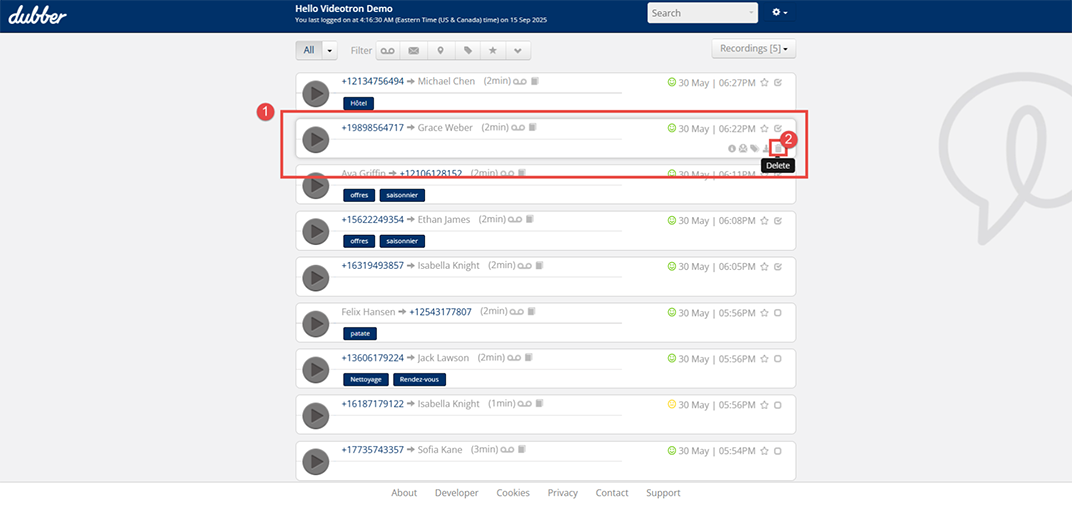
- Find the recording you want to delete.
- Click on the trash can icon at the bottom right. A pop-up window will appear.
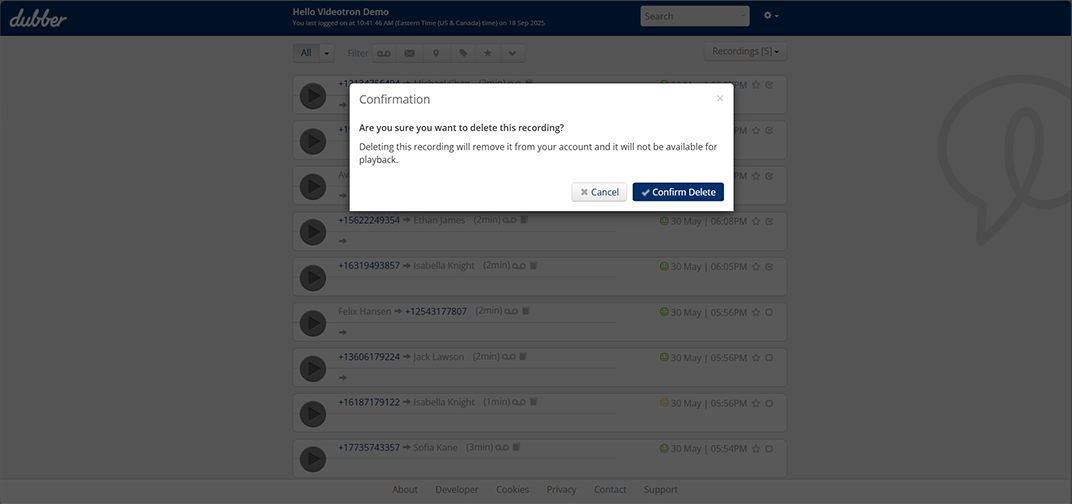
- Enter your password.
- Click Confirm Deletion.
It is not possible to delete a recording marked by legal hold.
The trash can icon will not be displayed for such recordings. The legal hold feature requires a subscription to a Unified, Intermediate, or Advanced plan. See the plans
Not yet a Videotron Business customer?
Call recording is an advanced option available with Cloud Communications to meet all your telephony and business communications needs. Discover Cloud Communications
More need help?

Customer Service
For any questions about your account or invoice, or to modify or add services.
 1 877 512-8590
