Good to know
If you have just signed up for a Mobile plan and will be using an eSIM card, follow the steps for activating an eSIM card instead.
Have you received a new SIM card and perhaps a new mobile phone? Check out the following procedures on how to kick things off on the right foot and start using your mobile services on your device.
- Make sure to turn your device off.
- Insert the SIM card.
- Activate the SIM card.
- Turn on the device.
- Configure the device, if necessary.
- Complete the initial Voicemail setup.
- Configure network settings, if needed, to make sure your services are functioning properly.
- Perform all other recommended configurations.
Inserting the SIM card
You need to insert a SIM card into your phone to for it to be registered on the network and ensure it works properly. Let’s get started:
Warning : Your SIM card is delicate—handle it carefully. The SIM card may not work properly if it is folded, scratched, or comes into contact with water or dirt.
- Turn your device off.
- Insert the SIM card ejector tool or the tip of a paper clip into the hole in the SIM card holder and press until the holder opens.
- Remove the holder from the device. If necessary, remove the old SIM card. Carefully place the new SIM card inside the holder. Line up the card’s tapered corner with the holder’s tapered corner.
- Insert the holder back into the device and push until it closes completely.
Activating your SIM card
To finalize the activation of your SIM card, choose the situation that applies to you. Note that if you activate a new Mobile Line with a new number, the SIM card will activate automatically after you insert it into your mobile.
Good to know
If you keep the same number and SIM format (e.g. nano-SIM) with your new device, you can simply transfer your existing SIM card into the device. No further action is required.
Mobile Line managed in My Account

If your Mobile service is managed in My Account, log in to your online account and click:
- Activate my SIM card if you’re keeping your current Videotron phone number
- Transfer my number if you have transferred your mobile number from another provider
Note: If you don't see the activation banner after logging in to My Account, or if you don't recognize the interface shown above, your Mobile Line is probably managed in the Customer Centre.
To confirm, scroll down and click View Services (see example below).
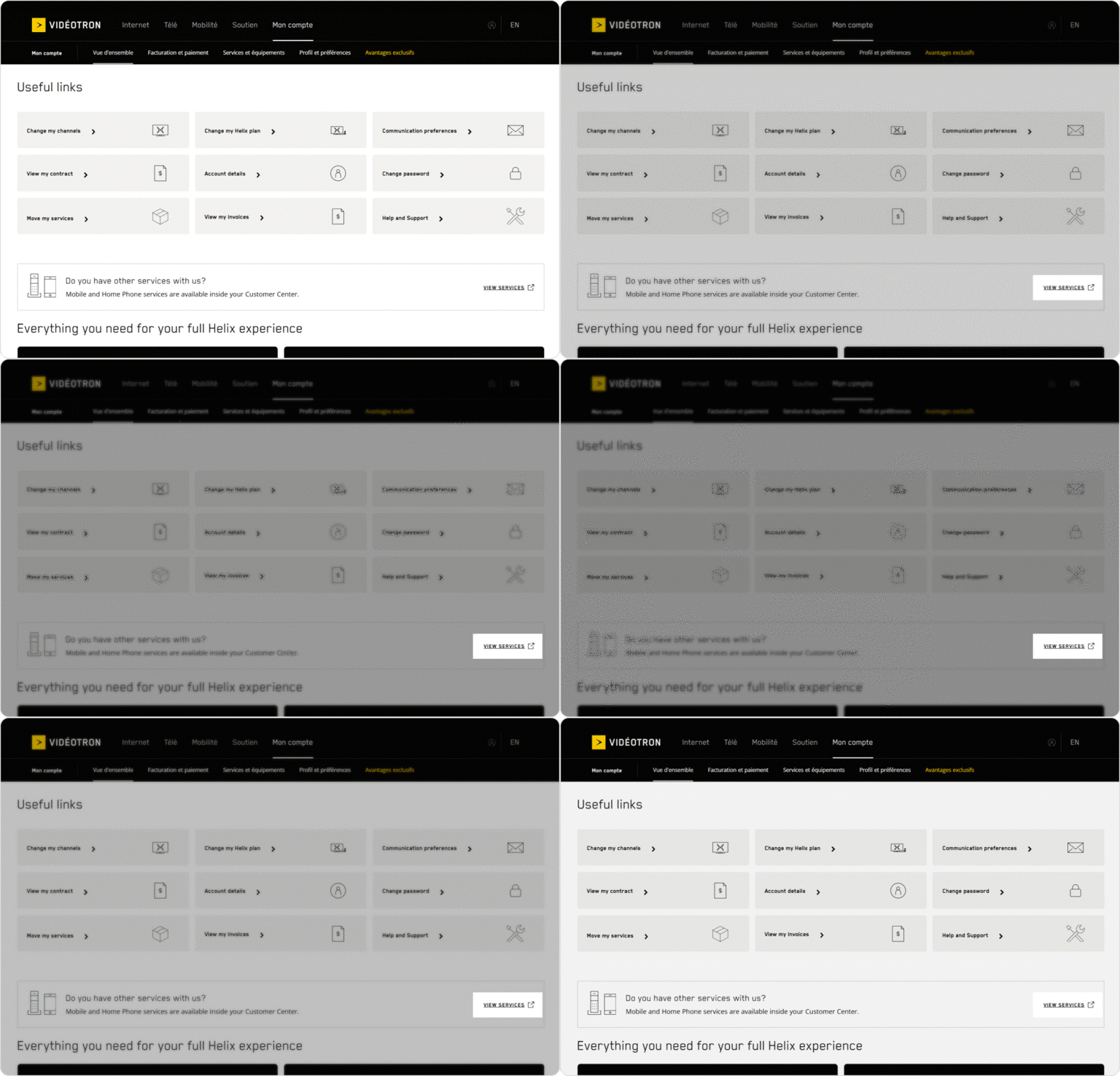
Mobile Line managed in the Customer Centre
To complete the activation of your SIM card, follow the steps that apply to your situation.
If you’re keeping your current Videotron phone number (renewal)
- Call our toll-free automated activation service at: 1-833-657-5507.
- Choose option 9, then option 1, and follow the instructions.
If you have transferred your mobile number from another provider
Had an eSIM card?
Before activating your Videotron SIM card, uninstall the eSIM card you used with your former provider.
To complete the transfer of your number, choose one of the following options:
- By automated call: Dial 1-877-477-5757, choose option 9, then option 1, and follow the instructions.
- Online: Log into your Customer Centre and click Complete your Mobile activation, in the Mobile section.
Need help getting started?
If you need a hand setting up your device, don’t hesitate to contact our representatives by chat or phone. We’re here to help!
Turning your mobile phone on
Once you have inserted your SIM card, you can turn your mobile phone on. Depending on the device, press and hold the side button or the on/standby button until the phone lights up.
Setting up your mobile phone
When you turn your mobile phone on for the first time, you need to complete its initial setup before using it. A configuration wizard guides you through the different steps.
iPhone
- Follow the on-screen instructions to choose your language, country, and accessibility options.
- If you already have another Apple device, tap Quick Start to automatically configure your new iPhone. If not, tap Set Up Manually.
- Select a Wi-Fi or cellular network to activate your device and continue configuring it.
- Set up Face ID or Touch ID and create your access code to protect your data.
- If you have an iCloud backup or backup on a computer or Android device, restore or transfer your data. If not, tap Don’t Transfer Apps and Data.
- Enter your Apple ID and password or select Forgot password or don’t have an Apple ID? to recover it, create an Apple ID, or set it up later.
- Turn on automatic updates and information sharing, then set up Siri and other services and display options (optional).
- Tap Start to start using your phone.
If necessary, check out more information on how to set up your iPhone.
Android
- Select your language and accept the Terms of Use, then tap Next.
- Select your Wi-Fi network, enter your password, and tap Next.
- If you have a Google account (@gmail.com), enter your ID and password. If not, tap Create Account and follow the instructions.
- Select the Google services you want to activate and tap Accept to continue.
- Create a password or save your fingerprint to unlock your device.
- Depending on the device you have, you may be asked to accept the manufacturer’s terms of use or create an account with the manufacturer (Samsung, for example). The creation of this account is optional.
- Your Android device is ready for use. If you wish to further customize your device, go to Settings.
If necessary, check out more information on how to set up your Android device.
First Voicemail setup
Start by accessing your voicemail with your temporary PIN, then choose a new PIN and set up your greeting message.
- Press and hold 1 to access your voicemail.
- Enter your temporary Personal Identification Number (PIN), which is the last 4 digits of your phone number followed by 99#.
- E.g., if your phone number is 514-281-1711, enter 171199#.
- Follow the instructions:
- Enter a new PIN, followed by #.
- Enable the PIN Skip feature if desired.
- Record your name for the greeting message: wait for the beep at the end of the instructions, say your name, then press #.
- Choose the type of greeting message:
- System message with your name only.
- Personalized greeting message.
Access your voicemail without having to enter your PIN by enabling the Personal Identification Number (PIN) skip option.
For more details, see how to set up Voicemail on a mobile phone.
Configuring network settings on a device you’re reusing
Depending on where you got your mobile phone, you may have to take additional steps to activate your new Videotron services. Follow these steps.
If you cannot access your mobile data, i.e., you cannot access the Internet unless you’re using a Wi-Fi network, use the Reset Network Settings procedure. You can find the instructions here.
Network access point name (APN) settings must be entered to allow access to mobile Internet data and photo/video (MMS) messages.
To set up these parameters, refer to these instructions.
Other recommended configurations
Congratulations! Your mobile is now activated and ready to use! We recommend that you keep customizing your services and device using the following procedures:
Download the User Centre + app
Enable localization to avoid losing my device
Enable Wi-Fi Calling to optimize my coverage
Set up a debit or credit card to pay with my mobile
Install a screen protector on my device
Set a mobile data limit on my device
See what my Mobile plan includes
Get our tips delivered straight to your inbox! Our support emails are full of tips and tricks to help you get the most out of your services. Define my communications settings.
Frequently asked questions about SIM cards
Three card formats are compatible with Videotron mobile devices:
- Mini SIM
- Micro SIM
- Nano SIM
The mini SIM card is considered the standard format. Not to be confused with the first-generation SIM card, which was the size of a credit card! The mini format is the second generation.
The mini SIM card is considered the standard format. Not to be confused with the first-generation SIM card, which was the size of a credit card! The mini format is the second generation.
Enter Support followed by your device model in the search bar at the top of the page to find its technical data sheet and user guide, or contact Customer Service.
A Dual SIM mobile device can operate two SIM cards simultaneously, thus allowing for two numbers and services from two different providers to be used on the same device.
As a Videotron Mobile customer, you can use a standard SIM card and an eSIM card on the same device, if said device has this capacity.
Note that the devices sold by Videotron do not support the Dual SIM feature with two physical SIM cards. Also, we cannot support the use or guarantee the proper functioning of a SIM or eSIM card from another provider.


