Resetting or disabling your Voicemail PIN

Change your Voicemail access code or disable it for faster access to your messages.

Update icon

Resetting the Voicemail access code

Mobile Voicemail: Resetting your PIN in the User Centre + app

  1. Download the User Centre app:
     

    Scan this QR code using the tablet or mobile phone you want to install the app on:
    User Centre QR code
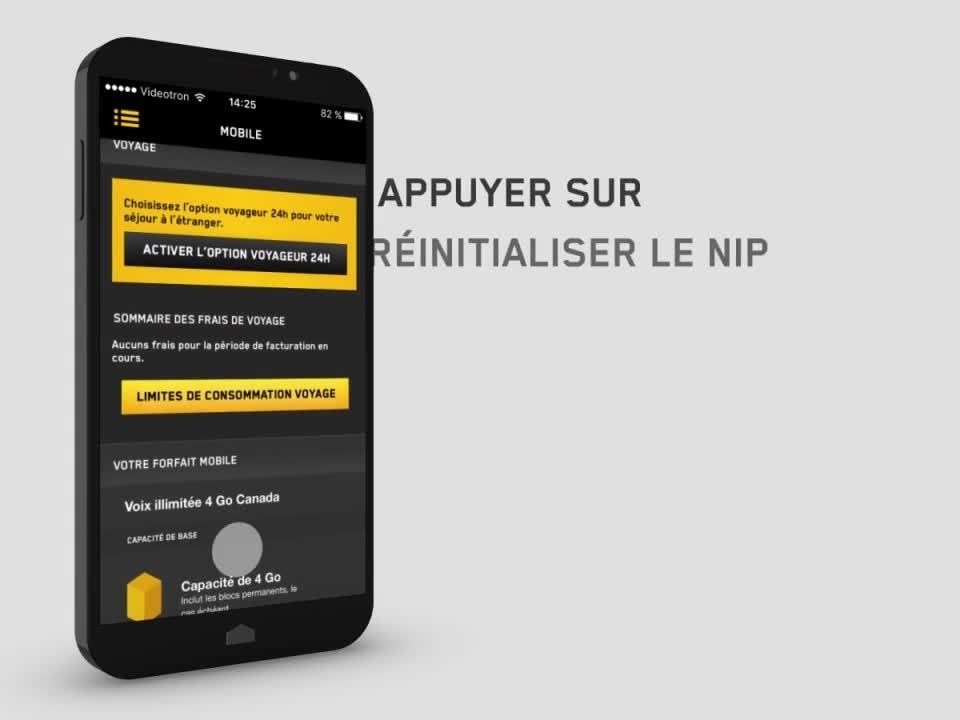
  2. In the Manage my usage section, select the number concerned and press Reset PIN.
  3. Call your Voicemail and dial the temporary PIN.
  4. Press 4-1-2 to set up your new PIN
   

If you haven’t logged into the app in several days, you will need to log in again and then press Reset PIN.

Mobile Voicemail: Resetting your PIN in My Account

  1. Log in to My Account.
  2. Go to the Services and Equipment section.
  3. Select Manage my Mobile Plan on the desired Mobile Line, then click on the Preferences tab.
  4. Select Reset the PIN, then click on Reset the PIN again.
  5. Call your Voicemail and dial the temporary PIN.
  6. Press 4-1-2 to set up your new PIN.

Home Phone or Mobile Voicemail: Resetting the PIN in the Customer Centre

  1. Access the Customer Centre.
  2. Go to the Home Phone or Mobility → See more + section.
  3. Click on Reset your Voicemail PIN.
  4. Call your Voicemail and dial the temporary PIN.
  5. Press 4-1-2 to set up your new PIN.
x-circle-outline

Disabling the Voicemail access code

Quickly access your mobile or residential Voicemail without having to enter your password, thanks to the PIN skip feature.

  1. Press and hold 1 to access your Voicemail.
  2. Press 4-1 to access the PIN skip options.
  3. Press 1 to enable or disable access code authentication (PIN usage).

Caution: If you disable your PIN, anyone with access to your device could access your voicemail.

Was this article useful?